Have you ever noticed that your privacy settings seem different or even reset after installing a new Android system update? You're not alone. This is a common experience for many Android users, and it often leads to confusion and concern about app permissions, notification visibility, and overall security. In this post, we'll break down why these changes happen, how Android handles permissions and notifications differently compared to iOS/iPadOS, and what you can do to keep your phone secure and privacy-friendly after every update.
What Happens During a System Update?
First, let's understand what a system update involves. Android system updates include new features, security patches, bug fixes, and sometimes major redesigns in how the operating system manages data and privacy.
- Security Hardening: Google constantly improves Android's security to protect your data from threats. Feature Changes: Updates may introduce new privacy tools or change how existing settings work. App Compatibility: Updates ensure apps run smoothly but may also reset some permissions to default to avoid conflicts.
Because of these changes, Android might reset or adjust some of your privacy settings, especially for app permissions and notifications. This leads us to some key areas affected:
Key Privacy Areas Affected By Android System Update Changes
1. Permissions Reset
One of the most noticeable changes after an update is that some app permissions may be reset or changed. For instance, an app that previously had access to your location or camera might suddenly ask for permission again.
Why does Android do this? Here are some important reasons:
Security Improvements: Android updates might remove permissions that are no longer deemed necessary or safe to grant by default. Permission Model Updates: Google occasionally updates how permissions work — for example, enforcing stricter rules about background access. Privacy Audits: Sometimes, Android revisits all app permissions to minimize unnecessary data access, prompting users to review them again.Because of this, after an update, it’s a good idea to do your own permissions audit. I always keep a checklist to review which apps have access to sensitive data — camera, microphone, contacts, location, and more.
2. Notification Visibility and Settings
The way notifications appear on your phone can change with an update. This includes:
- Lock Screen Previews: Whether notifications show full content or just a generic alert on your lock screen. Notification Badges: Those small dots or numbers on app icons signaling new activity. Sounds and Vibrations: Default behavior for notification alerts might be reset or modified.
Why does Google do this? Mainly to give you better control over what companies can see when your phone is locked, stopping sensitive info from showing automatically. But it also means these settings might revert to conservative defaults — so check your notification settings after every major Android update.
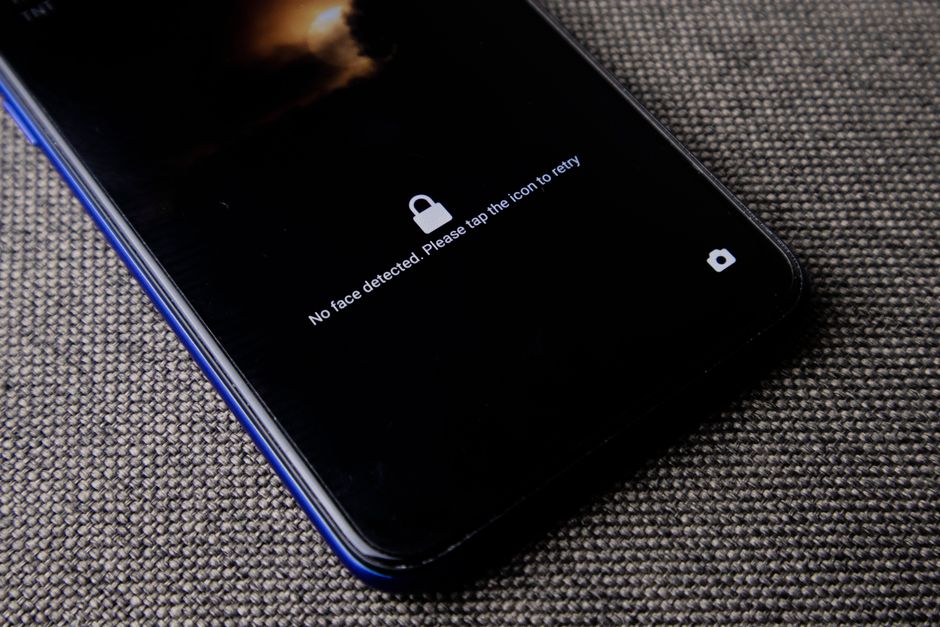
Where To Find These Settings On Your Android Device
The exact path can vary by Android version and phone brand, but here’s a clear guide to where you can quickly find and adjust permissions and notification settings:
Setting Type Where to Find It What to Check Permissions Open Settings Tap Apps or Installed Apps Select the app you want to check Tap Permissions- Review location, camera, microphone, and other access Revoke any permission that looks unnecessary
- Choose if notifications show content, hide sensitive content, or don't show at all Set sound and vibration preferences per app Manage notification badges
Verified Download Sources and Domain Checks: Your First Line of Defense
Here's a story that illustrates this perfectly: was shocked by the final bill.. Before even worrying about permissions reset or notification changes, always download apps from verified sources like the Google Play Store. This limits the risk of malware or apps that abuse permissions after updates.
Also, watch out for links or URLs you click on. I always remind readers to read the full domain out loud before trusting any website link they receive, especially in support chats or email. For example, don’t just trust 'bank.example' — confirm it ends with something like examplebank.com or a verified domain.
Android vs. iOS/iPadOS: A Quick Comparison of Privacy Controls
Android and Apple’s iOS/iPadOS ecosystems each have their own approach to privacy, and updates affect them differently.
Privacy Aspect Android iOS/iPadOS Permission Model Granular control with updates resetting or refining app permissions App permissions requested upfront, tight sandboxing, fewer unexpected resets Notification Controls Flexible, changeable, with detailed control over badges and lock screen previews Similar control but with more consistent default behavior after updates System Updates Can reset settings to defaults; user needs to review post-update Updates rare to change user preferences drastically; generally stable after updatePermission Awareness and Timing: When to Say Yes or No
It’s important to be aware of when and why
During First Use: The app should only request permissions when needed, not all at once. Contextual Access: For example, a camera app needs camera permission right when you try to take a photo. After Updates: Sometimes apps ask again due to system changes; review carefully to avoid unwanted access.Never grant permissions blindly, especially after updates. Always ask yourself: Does this app really need this access for what I want to do?
Data Minimization and Safe Support Requests
One privacy best practice https://dgmnews.com/bingo-plus-app-and-the-new-standard-for-privacy-aware-mobile-access/ is data minimization: Only share the bare minimum information needed. This is crucial when you’re working with app support or customer service.
Here’s a common mistake: many users provide sensitive data like prices, deposit amounts, or promo figures unnecessarily or without confirming security. Remember:
- Only share sensitive info through official support channels, never via random chats or unverified links. A legitimate support account will never ask repeatedly for one-time codes or passwords. Double-check domain names before clicking links or sending info — read the full domain out loud.
By keeping data sharing minimal and secure, you protect yourself from scams and privacy leaks, especially after an Android update which might temporarily loosen some permission controls.
Final Checklist After an Android System Update
Here’s my personal step-by-step checklist — a “permissions audit” — after every major Android update. Follow along to keep your privacy tight.
Review all app permissions: Go through critical apps one by one and adjust settings. Check notification settings: Make sure lock screen previews and badges reflect your preferences. Verify app sources: Ensure no new apps installed without your knowledge, and all are from Google Play or trusted stores. Test sensitive apps: Open banking or payment apps and confirm they still work and ask no unusual permissions. Update passwords and security settings: Use two-factor authentication (2FA) and update biometric settings if necessary.Summary
You know what's funny? android system update changes can feel frustrating when your privacy settings or notifications behave differently. But these changes mainly happen to enhance your security and protect you from evolving threats. By understanding permission resets, adjusting notification visibility, verifying download sources, and practicing data minimization, you regain control over your device’s privacy.
Always take a moment after updates to walk through your settings — it just takes a few minutes and can save you from bigger risks later.

Remember: when in doubt, check settings manually, avoid trusting links blindly, and keep your personal data sharing to a minimum.
Stay safe and in control!